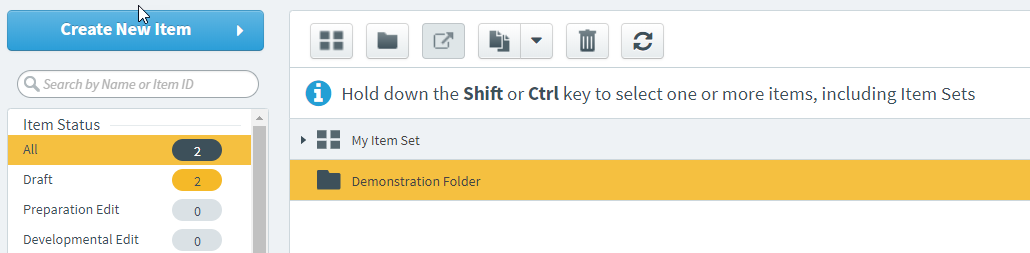
You can create new items within folders in Item Authoring.
-
Locate your
-
Click the Create New Item button .
- Select either Multiple Choice or Item Set from the question type options.
-
Enter the item name using this format: FirstInitialLastName_#.
Example: John Smith’s first item would be called JSmith_1.
-
Without highlighting any text, left-click your mouse cursor in the Name field, then right-click to open the browser menu.
-
Select Spell check, then deselect both Use basic spell check and Use enhanced spell check so that neither option has a checkmark.
-
Enter your item content or save the blank item.
 Enable medical spell check (first-time users only)

Your new item is created in Draft status.
Save and close an item
Saving an item stores it for future use and editing, and creates a new item version. Any changes made to the item prior to saving are visible the next time you open the item.
Click the Save button  at the bottom of the screen.

You can now move to another item, keep working in this item, or close the item. To close an item, click the x button  . If you have unsaved changes when closing, a dialog box displays.
-
Choose to Save the item or Discard Changes before exiting.
-
Click Cancel to continue working in the item.

Items remain locked if you leave the item or close the browser without saving or discarding changes. Click here for information on unlocking items.
The new, saved item version reflects your changes since the item's last save.
Item locking
Items are locked for editing when a someone is working in them or when they are in an active task. In Item Authoring, save or discard your changes before closing the item or exiting Surpass. If the item is in a task. finalize the task. This unlocks the item for other editors.
Locked items
Items locked from editing display a lock icon in the item list.
Open the item to see who is editing the locked item,. Locked items only display in Preview mode. Editing is disabled until the item is no longer locked.
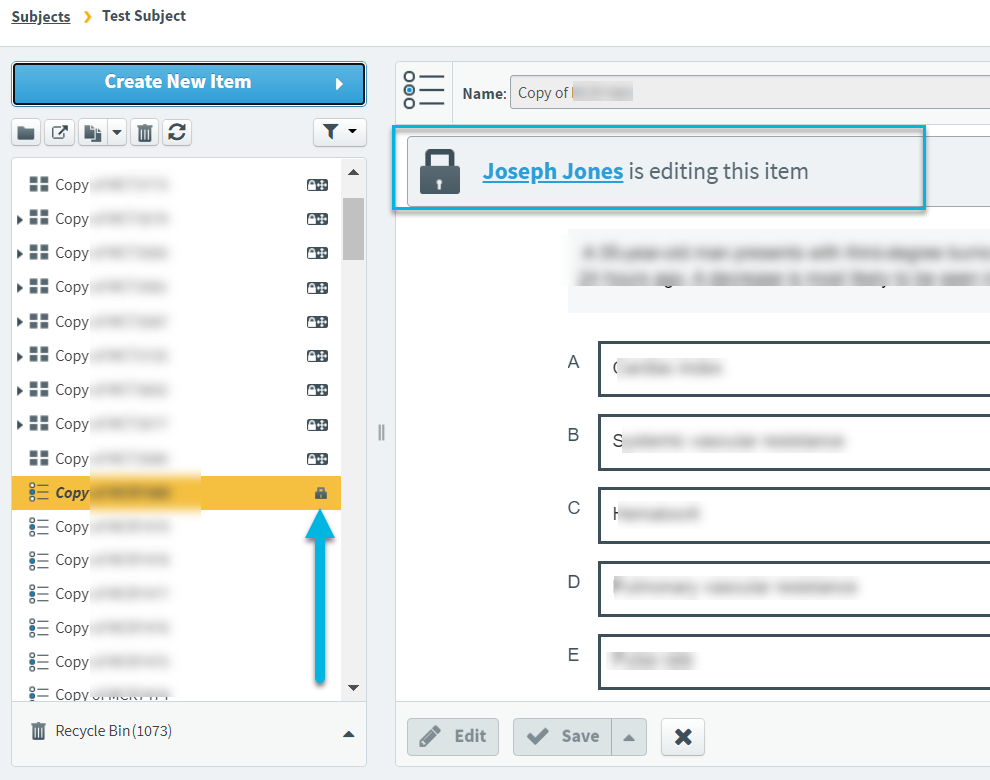
Before exiting Surpass or moving to another subject while editing, check that you have not accidentally locked any items.
Unlocking items
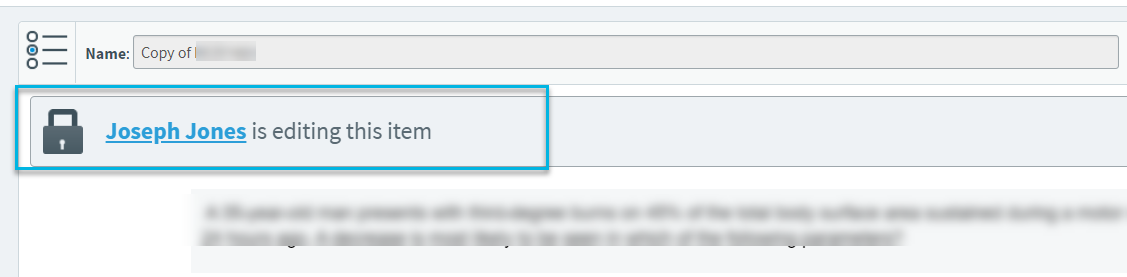
If you are the user identified in a locked item, open the item and see if the Save button is active (blue).
- Save button is active: This indicates that there are unsaved changes. Verify the item content and Save or Discard Changes to clear the lock.
- Save button is greyed out: If the Save button is inactive, add and remove a space in any text field, then click the x at the bottom. Choose to Save or Discard Changes, and wait for the item to refresh and clear the lock.

©Copyright NBME 2026